Tired of scrolling through hundreds of irrelevant tenders? We’ve built Open Opportunities to help you find opportunities that actually matter to your business.
Here’s how to use our key features to save time and find better opportunities.
Using CPV classifications to narrow your search
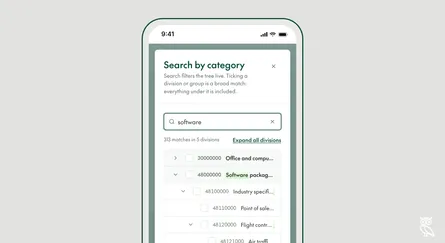
Every opportunity on Open Opportunities is tagged with CPV (Common Procurement Vocabulary) codes – industry classifications that help you cut out the noise.
You can search by CPV code number or category name. Select the categories that match your business, and you’ll see only relevant opportunities. No more tech tenders when you supply catering, or construction projects when you’re in consulting.
Filtering for opportunities with attachments
Open Attachments in the Filters panel and tick Only notices with documents.
Open Opportunities collects the documents with the notice. No more hunting across multiple portals for the files you need.
Filtering by language
Show only opportunities published in languages your team actually speaks.
Open Language in the Filters panel.
Select the languages you work in – for instance, if your team works in English and German, tick those boxes. You’ll immediately see only opportunities in those languages.
This means no wasting time on tenders published in Turkish when you only work in Germany, or French tenders when you don’t speak French.
Searching by contract value in your preferred currency
All monetary values on Open Opportunities are automatically converted to GBP, USD, and EUR.
Open Currency & value in the Filters panel.
Select your preferred currency from the drop-down, then set your minimum and maximum contract values.
Using keyword search (AND/OR)
You can search multiple terms at once using “AND” and “OR” in the keyword field.
Choose Keyword under Search method at the top of the search page, and enter your terms in Words to find using AND or OR.
For example, searching for “digital OR software AND finance” will find opportunities that mention finance along with either digital or software.
This means one search instead of three separate searches, giving you comprehensive results faster.
Searching by country or continent
You can search across entire continents or drill down to specific countries.
Click Where at the top of the search page, then Browse countries.
At the top, you’ll see tabs for Europe, Asia, North America, South America, Africa, and Oceania. You can select an entire continent or tick individual countries.
You can also select the Whole continent option to include all countries in that region.
Saving country collections
If you regularly target the same group of countries, you can save them as a collection.
Under Where, select your countries, then open Collections to save them under a name.
Next time you search, just load your saved collection instead of selecting countries individually.
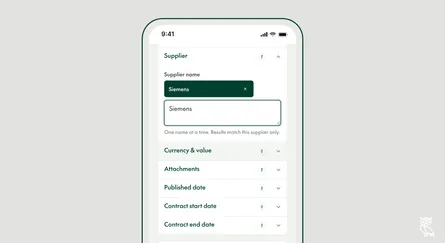
Targeting specific buyers
You can filter opportunities by the government buyers you want to work with.
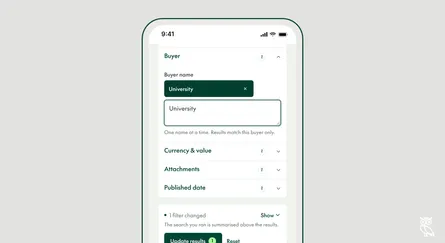
Open Buyer in the Filters panel.
Type the name of the buyer in the search field. You can search for specific organisations like “NHS” or use common features like “University” to see opportunities from all universities.
If you’ve worked with NHS before or want to target specific ministries, this helps you see only their opportunities.
Setting published and deadline dates
Filter by dates to catch fresh opportunities and avoid expired tenders.
Open Published date or Deadline date in the Filters panel. Deadline date appears when open or closed tenders are the only notice types ticked.
Turn this search into an automated alert so you never miss an opportunity.
Once you’ve set up your perfect search with all your filters, click Save above the results, name the search and choose how often to get alerts: Daily, Weekly or Monthly.