Getting started with Open Opportunities
- Ian Makgill
- Help
- 10 Nov, 2026
- 02 Mins read
Last updated: 10 November 2026
To start searching Open Opportunities, all you need is your company's website address.
Start searching
- Click Search now on any page of openopps.com, or go to app.openopps.com/onboarding.
- Enter your company's website address. That is enough to start: Open Opportunities shows you an Activity Search for what your company does.
- Search. After a limited amount of use, Open Opportunities asks you to sign up for the free plan if you want to see more.
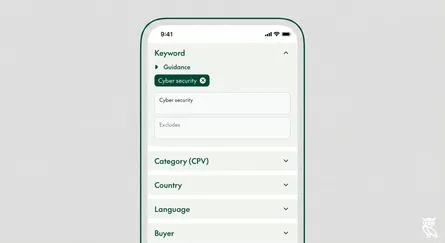
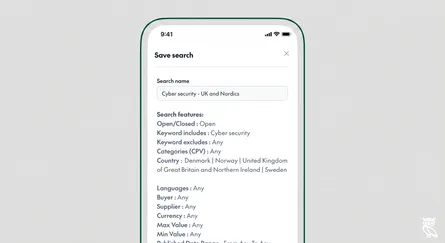
How to search by keyword and How to create a saved search show each step in the app.
Activity Search and keyword search
Activity Search is what you see first. It matches what your company does with what buyers want done, so a tender written in different words still matches. Search for "penetration testing" and it finds the notice that only says "security assessment". Activity Search does not cover award notices.
Keyword search finds notices that contain the words you type, across every notice we collect, award notices included. Use it when you know the words a buyer will use, or to find who won a contract. To switch between the two, use the search type drop-down in the search bar. How to search by exact keyword shows how to search for an exact phrase.
Narrow your results with filters
Filters work with both Activity Search and keyword search, on every plan, the free plan included. They narrow a search by country, buyer, supplier, category, language, notice type, value, dates and whether a notice has attachments. Search filters lists every filter and what it does.
The free plan
The free plan costs nothing, has no time limit and needs no card. Once you sign up, we send you a free weekly email of tenders chosen for your company.
Saved searches and alerts
On Solo and Team, saved searches run overnight and alerts are emailed in the morning, UK time. How to create a saved search shows how to set one up.
Support on each plan
| Plan | Support |
|---|---|
| Free | Email support. |
| Solo | Chat support. |
| Team | Full support and onboarding from one of our search consultants. |
On the Team plan, your search consultant:
- helps you find exactly what you're looking for;
- sets up your saved searches;
- monitors sources for you, and adds new sources you ask for;
- checks in with you regularly and advises you on fixing searches that miss tenders or return too many.
Language and hours
The app and our support team work in English, during UK working hours. On the Team plan you can translate notices into English, French, German, Italian, Portuguese or Spanish.
To reach us, use our contact page.