How to search by supplier
- Ian Makgill
- Help
- 23 Nov, 2025
- 03 Mins read
Searching for a specific supplier is easy using Open Opportunities.
You can search for contracts that have been won by suppliers in the contracts database.

On the left of your screen (or at the top if you are using a mobile) is what we call the filters tray, a list of fields that you can use to help you find what you need. Individual search filters can be open or closed using the ^ icons on the right hand side of the tray. By default the Open / Closed and Keyword filters are open so that you can use them immediately.
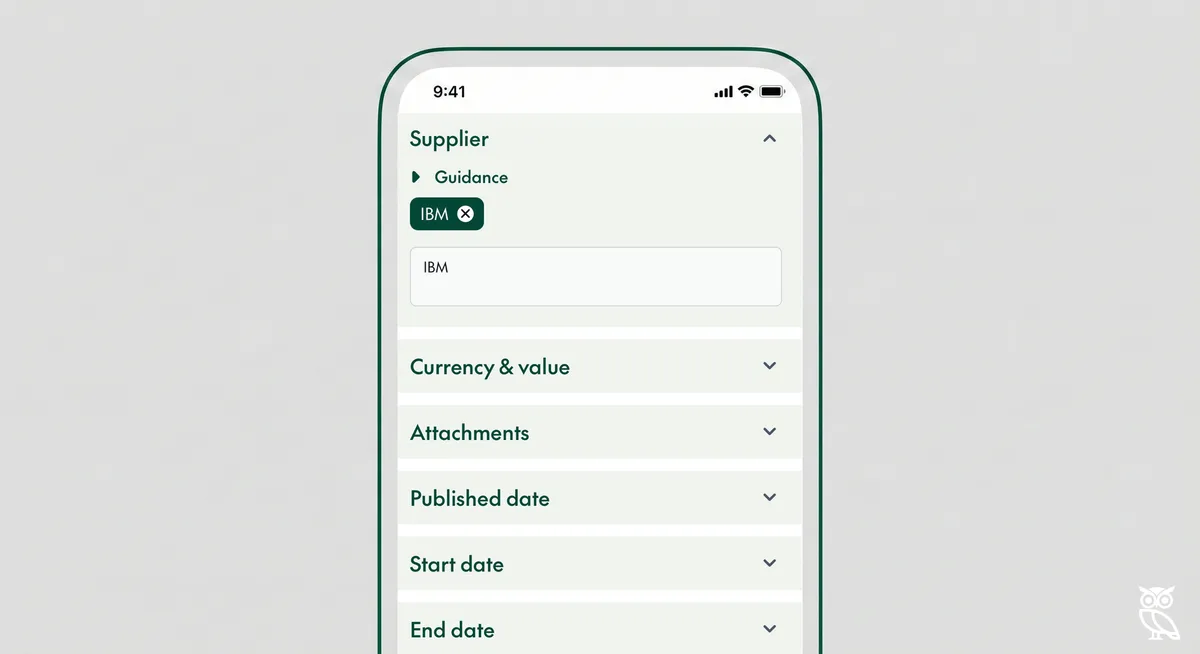
Scroll down until you see the Supplier field and expand the tray using the small down arrow at the end of the tray.
Expanding the Supplier tray will show you a search field for suppliers, where you can add the names of a given buyer or common features in supplier names.


The supplier search functions exactly like the keyword search, you can add a single word or multiple words to search for a buyer. In this example we've entered IBM as a search, this search for variations of IBM and you will see results that derive from that name. In the results below you can see that contracts shown include IBM in the name.

You can use the Buyer filter to search for groups of organisations, for instance entering University into the Buyer field will return results where the buyer has the word "University" in the title giving you results from different universities. This approach can be used to search for tenders by councils, hospitals and government departments.

Supplier searches can be combined, so if you wanted to search for opportunities being let by multiple suppliers that is possible using quotes. Here we search for both "IBM" and "Microsoft" there are no contracts won by both companies, but we do see results where either firm has won the contract.