How to search by keyword
- Ian Makgill
- Help
- 23 Nov, 2025
- 02 Mins read
Searching by keyword is easy using Open Opportunities.
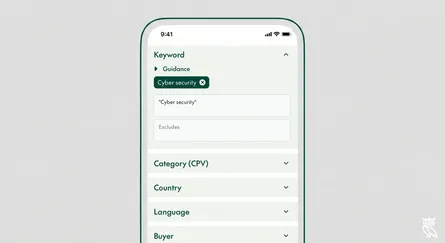
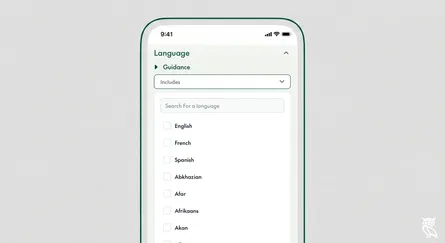
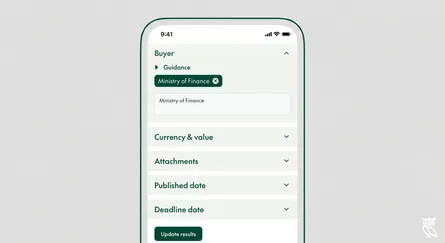
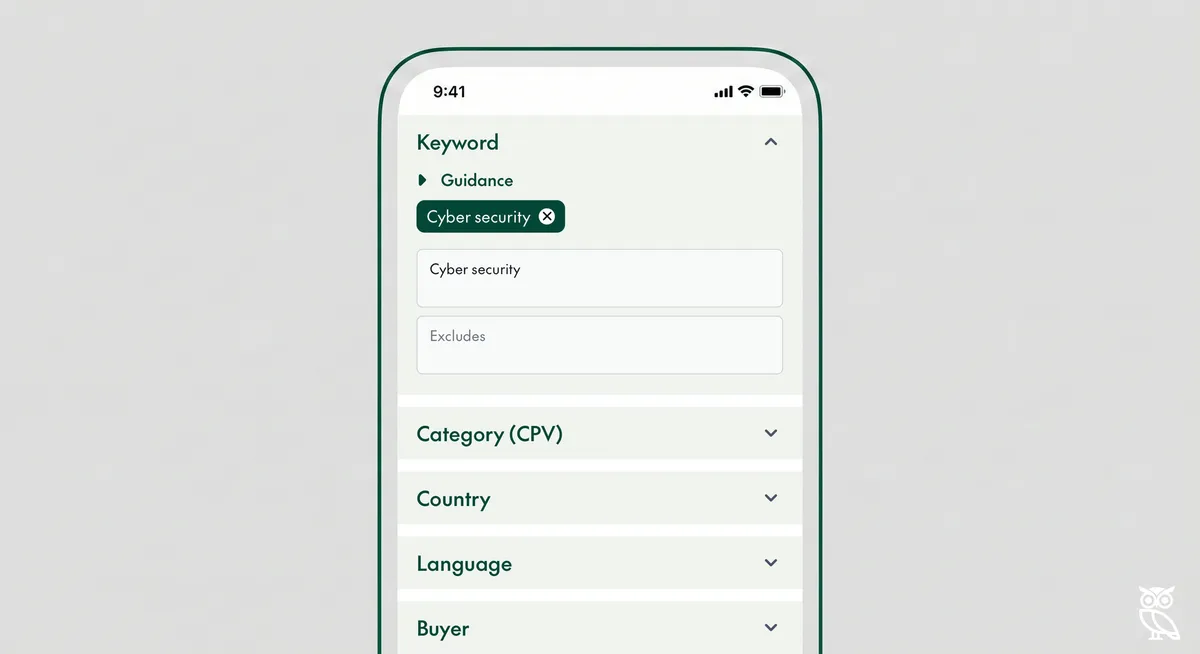
On the left of your screen (or the top of your screen if you are using a mobile) is what we call the filters tray, a list of fields that you can use to help you find what you need. Individual search filters can be open or closed using the ^ icons on the right hand side of the tray. By default the Open / Closed and Keyword filters are open so that you can use them immediately.

Includes and excludes
The Keyword filter features two fields, Includes and Excludes. When you enter a word into the Includes field you're telling Open Opportunities that you want to show records that include a certain word. When you type architecture into the Includes field Open Opportunities will show you records that include the word architecture. That might be opportunities for architecture services or for enterprise system architecture.


When you type something into the Excludes field you're telling Open Opportunities what you DON'T want to see. So if you type enterprise into the Excludes field you won't see any opportunities that feature the word enterprise. If you type architecture into the Includes field and enterprise into the Excludes field you'll see information on architecture but not systems architecture.


To make it easier for you our search algorithm has the ability to search for words to the ones that are similar to anything you enter in the search. If you add architecture into a keyword search Open Opportunities will also return documents that include architectural or architect, it just won't think those documents are quite as important as the ones that include architecture.