Set Up AI-Powered Procurement Alerts
This guide walks you through setting up an automated alert system that fetches procurement opportunities from the Open Opportunities API, uses an LLM to classify each one against your plain-English rules, and posts matches to Microsoft Teams or Slack.
By the end, you'll have procurement alerts landing in the right channels automatically, classified, summarised, and scored for relevance. The whole setup takes about 15 minutes.
Get the code: github.com/spendnetwork/alert-router
What you need
Before you start, make sure you have:
- An Open Opportunities account with API credit, see API pricing
- A Google Gemini API key (free tier is fine), get one here
- Microsoft Teams or Slack, whichever your team uses
- Python 3.9 or higher installed on your machine
- 15 minutes
Step 1: Get your API credentials
Your Open Opportunities login email and password are your API credentials. That's it — no separate API key needed.
If you don't have an account yet, buy API credit.
How authentication works
The API uses bearer token authentication. You send your email and password once to get a token, then use that token for all subsequent requests:
import requests

# Step 1: Get a bearer token
response = requests.post(
    "https://api.spendnetwork.cloud/api/v3/login/access-token",
    json={"username": "you@company.com", "password": "your-password"}
)
token = response.json()["access_token"]

# Step 2: Use the token for API calls
headers = {"Authorization": f"Bearer {token}"}
The alert router handles all of this automatically — you just put your email and password in the config file.
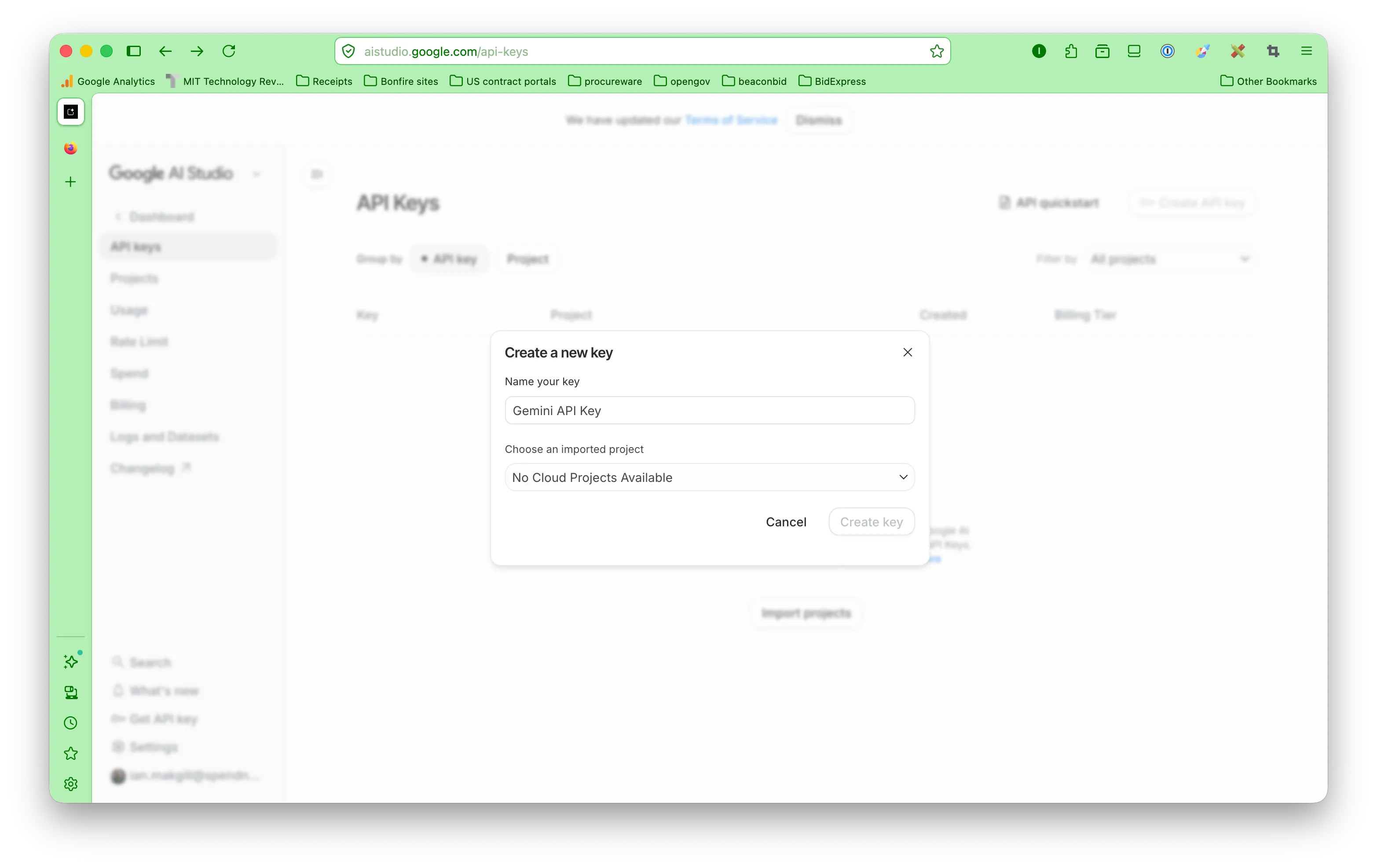
Step 2: Get a Gemini API key
The router uses Google Gemini to read each procurement record and decide which of your rules it matches. The free tier is more than enough for this.
- Go to aistudio.google.com/apikey
- Click Create API key
- Copy the key — it starts with
AIza... - You'll paste this into your config file in Step 5
Why Gemini?
We use Gemini because it's fast, cheap, and supports structured JSON output — meaning the LLM returns a proper JSON object every time, not freeform text that might break your parsing. The router uses Gemini's response schema feature to enforce this.
Using a different LLM
The router works with any LLM that supports structured or JSON output mode:
- OpenAI — use
response_format: { type: "json_schema" } - Anthropic Claude — use tool use with a defined schema
- Mistral — use JSON mode
- Local models — Ollama, vLLM etc. with JSON grammar enforcement
To switch LLM provider, you'd modify router/classify.py. The key requirement is that the LLM returns structured JSON so parsing is reliable. See the "Using other LLMs" section at the end of this guide.
Step 3: Set up a Teams webhook
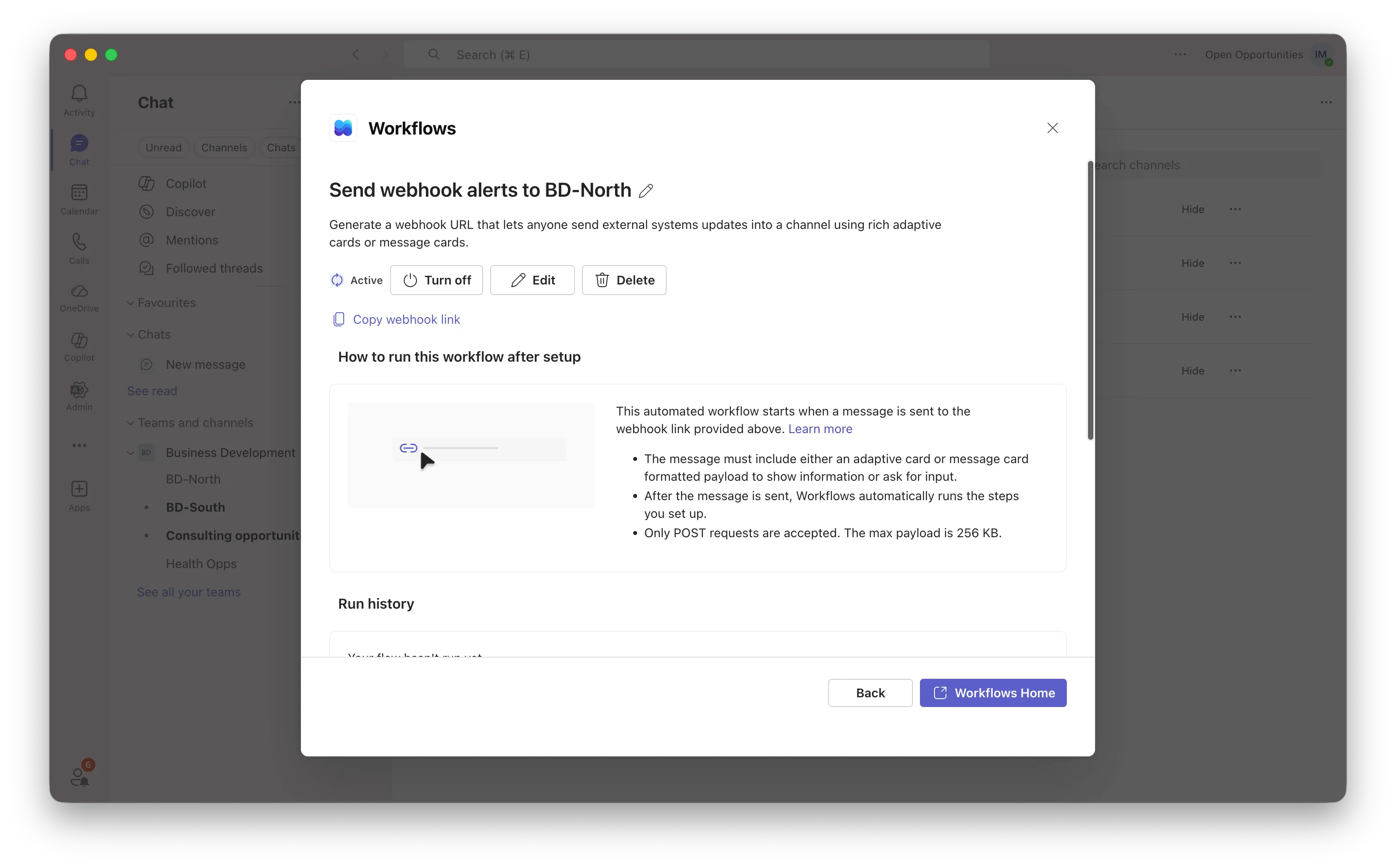
You need a webhook URL for each Teams channel you want to receive alerts. A webhook is just a URL that accepts incoming messages — when the router sends data to it, a card appears in the channel.
Microsoft Teams now uses Power Automate Workflows for this (the old "Incoming Webhook" connector is being retired).
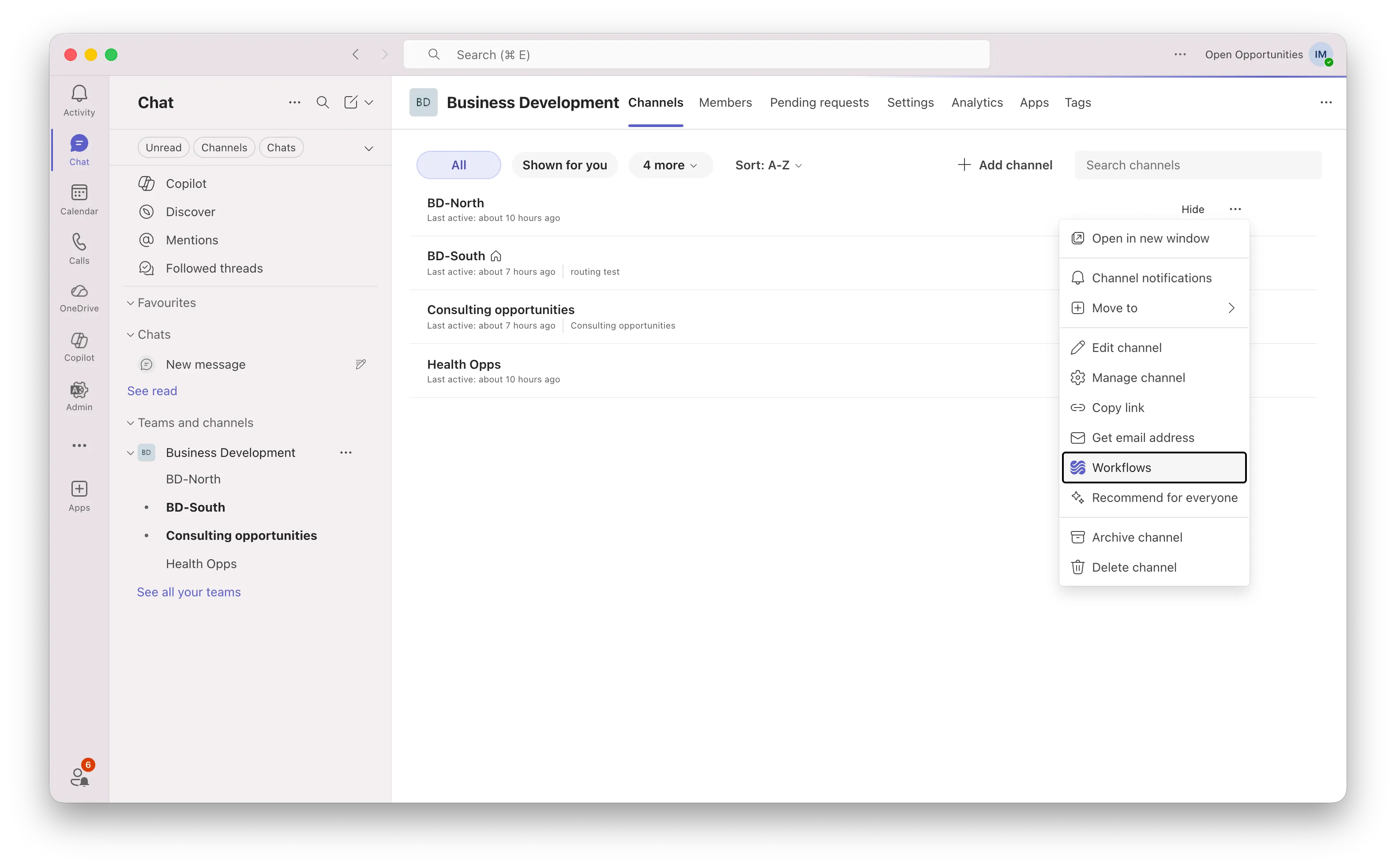
Create a webhook in Teams
- Open Microsoft Teams and go to the channel where you want alerts (e.g. "Procurement Alerts")
- Click the three dots (⋯) next to the channel name
- Click Manage channel
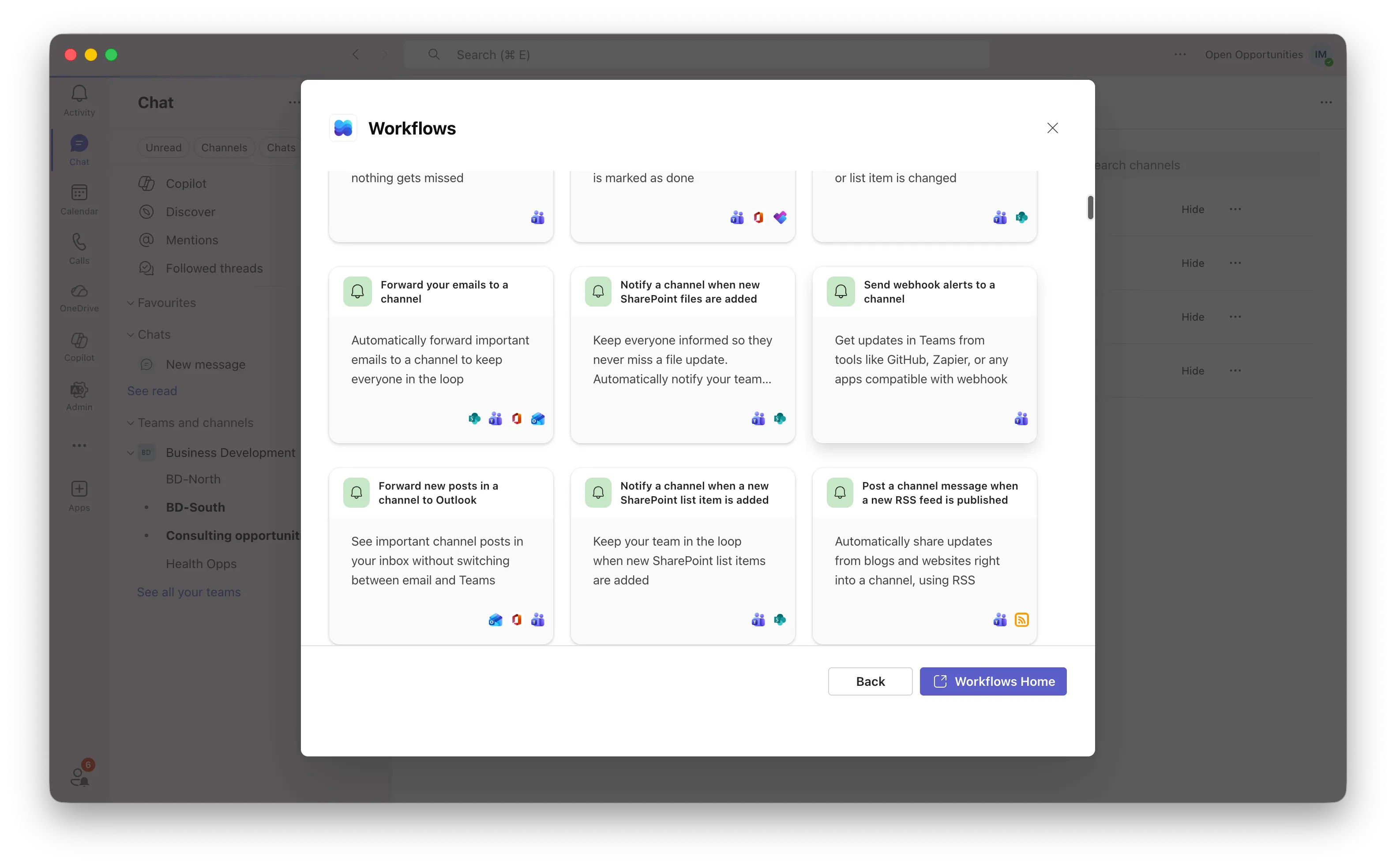
- Scroll down and click Connectors or look for Workflows
- Search for "Post to a channel when a webhook request is received"
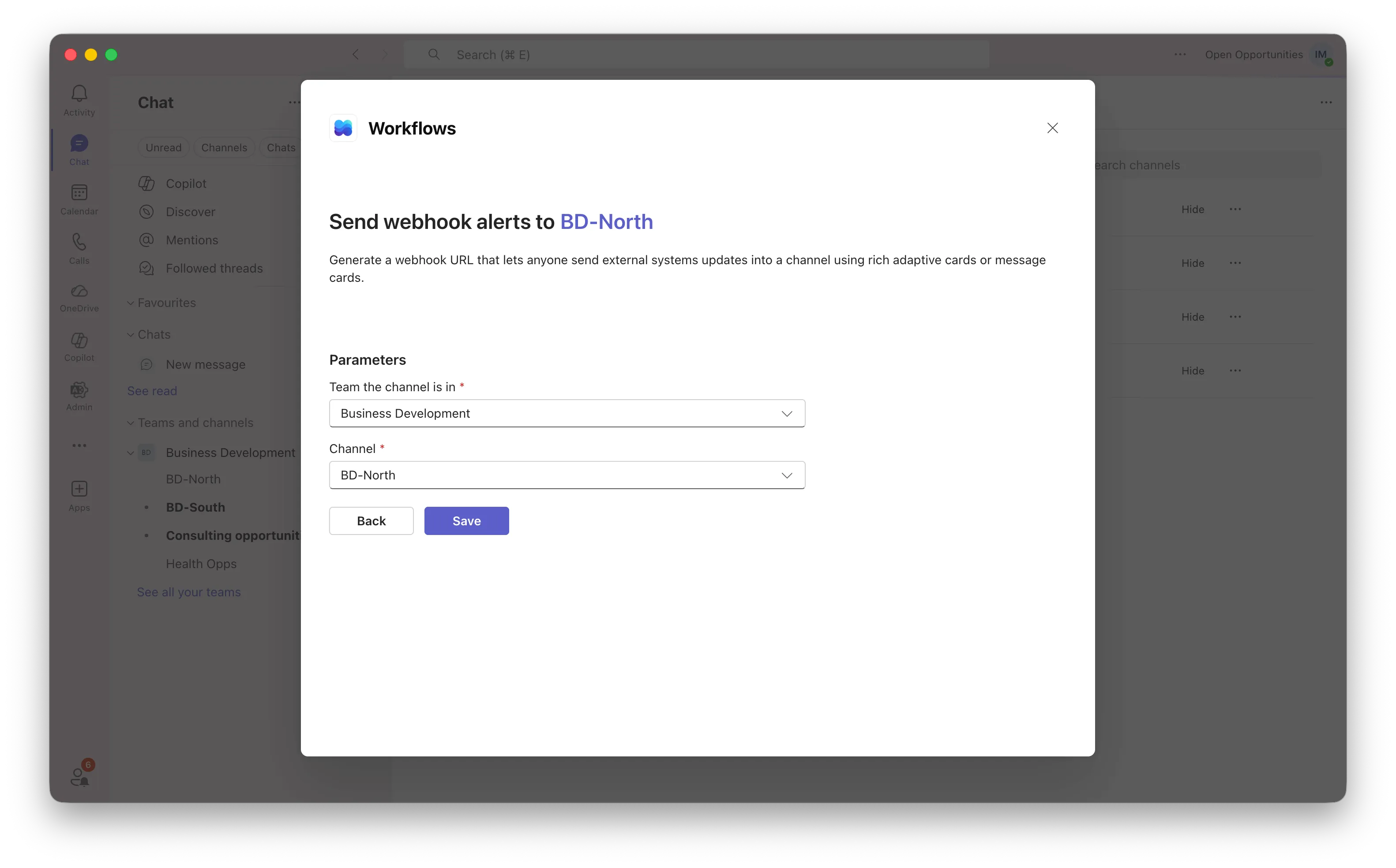
- Click it and follow the setup steps
- Give it a name like "Procurement Alerts"
- Click Create
- Copy the webhook URL — it will be long and start with
https://...powerplatform.com/... - Click Done
That's your webhook URL. You'll paste it into the config file in Step 5.
Repeat this for each channel you want alerts in (e.g. one for "BD North", one for "BD South", one for "Health Opportunities").
Skip to Step 5 if you're not using Slack.
Step 4: Set up a Slack webhook
If you're using Slack instead of (or as well as) Teams, you need a webhook URL for each Slack channel.
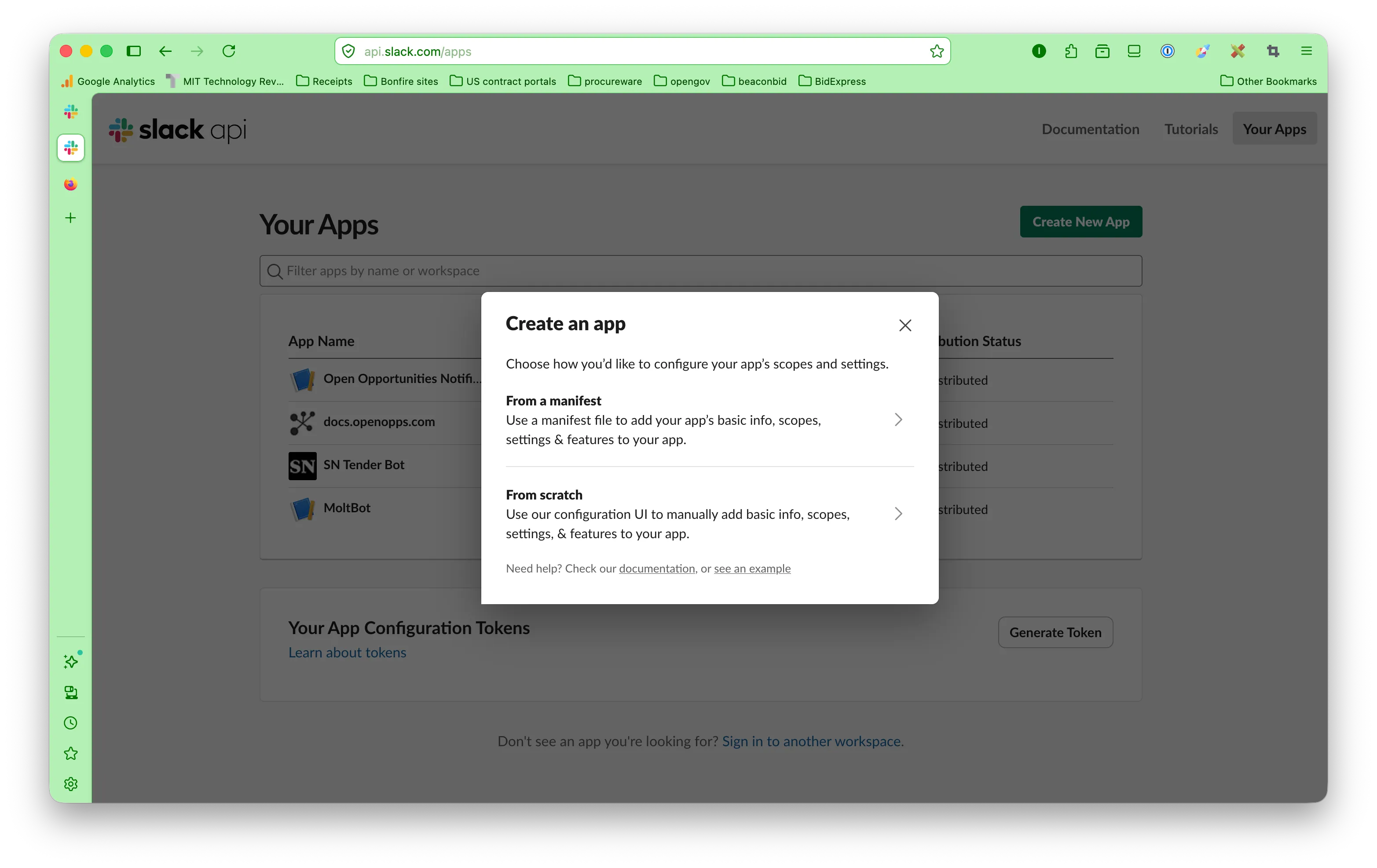
- Go to api.slack.com/apps
- Click Create New App
- Choose From scratch
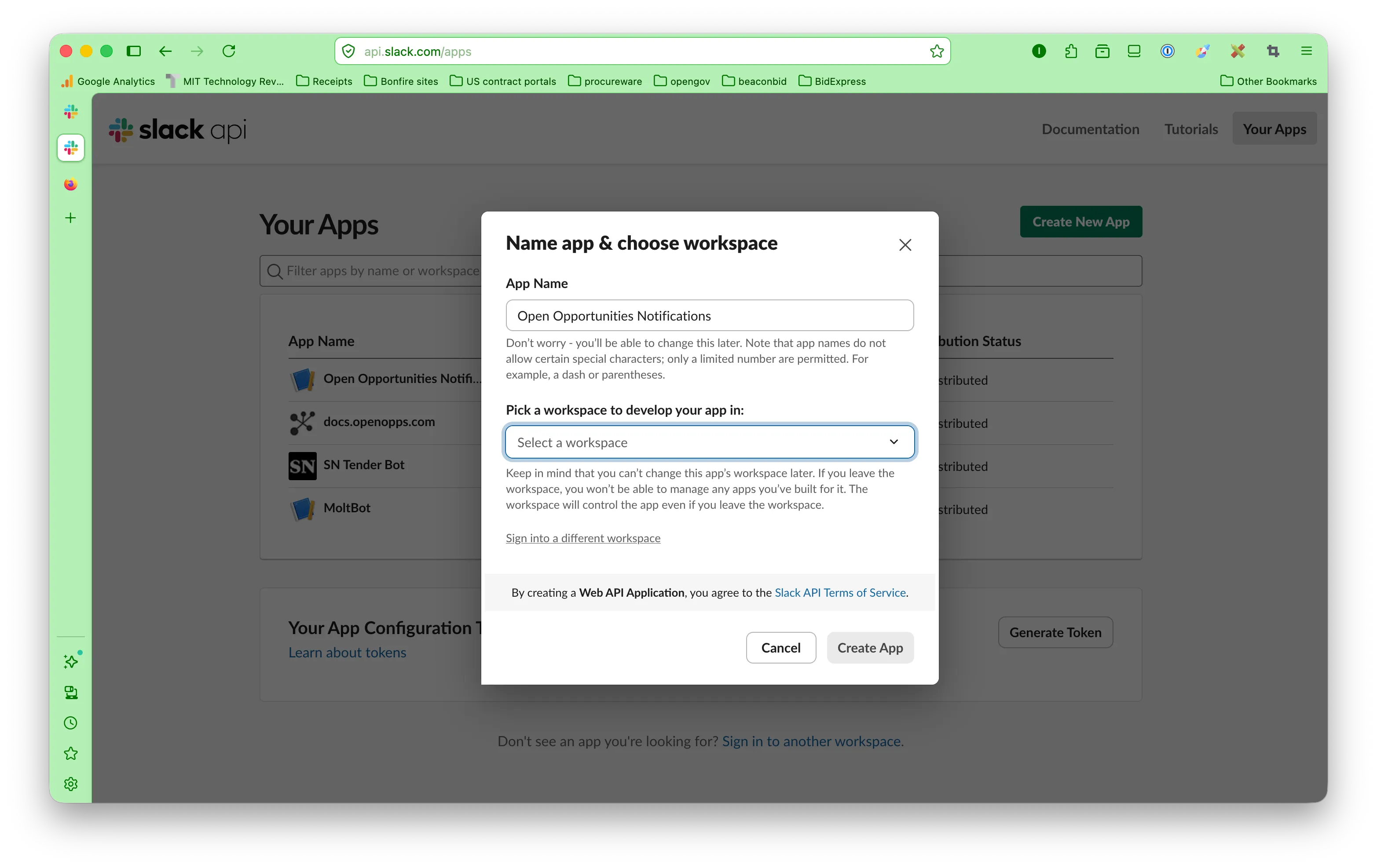
- Name it "Open Opportunities Notifications" and pick your workspace
- Click Create App
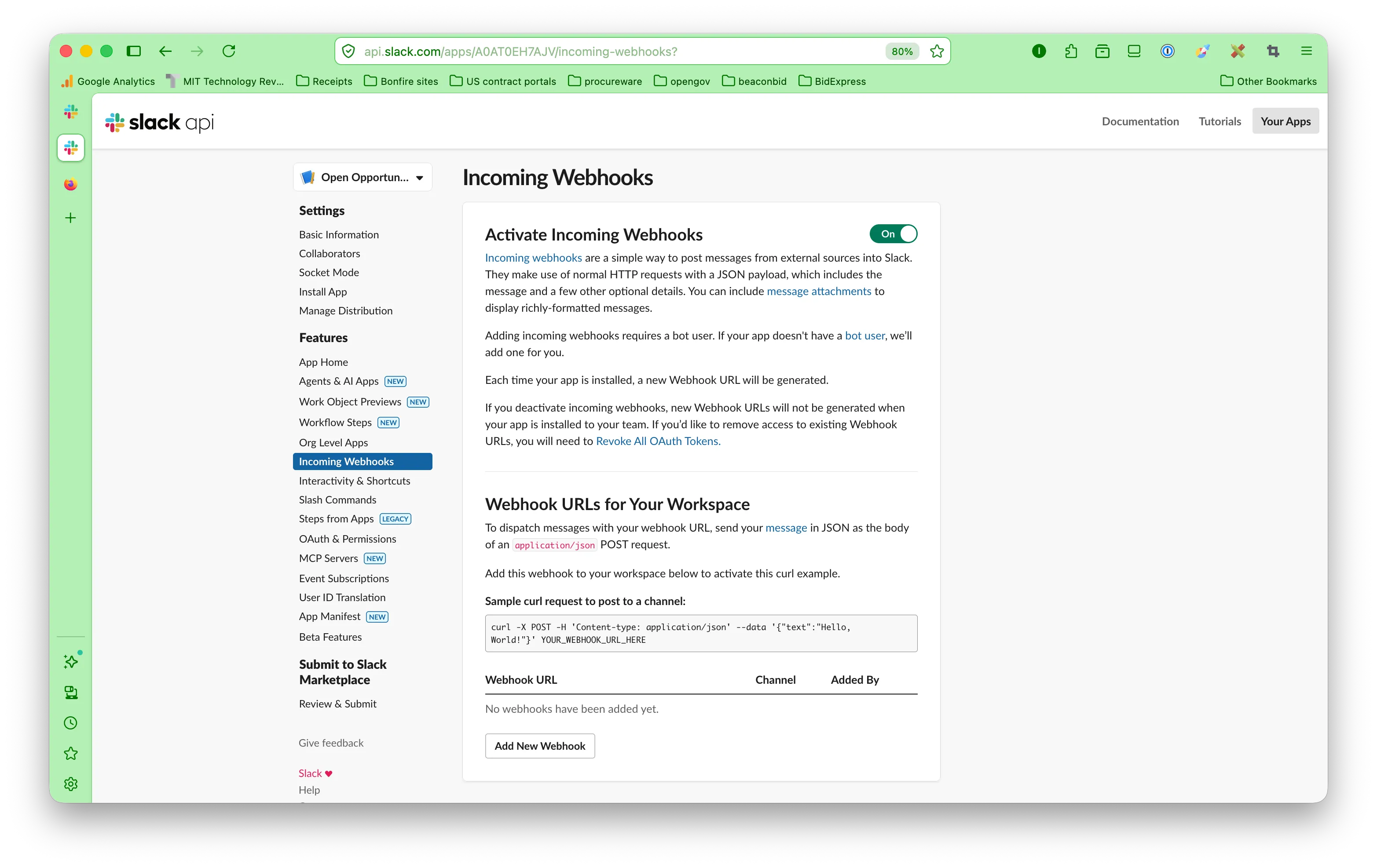
- In the left sidebar, click Incoming Webhooks
- Toggle Activate Incoming Webhooks to On
- Scroll down and click Add New Webhook to Workspace
- Pick the channel you want alerts in (e.g.
#procurement-alerts) - Click Allow
- Copy the webhook URL — it looks like
https://hooks.slack.com/services/T00000/B00000/xxxx
That's your Slack webhook. Repeat for each channel you need.
Step 5: Download and configure the router
Download the code
Open a terminal and run:
git clone https://github.com/spendnetwork/alert-router
cd alert-router
pip install -r requirements.txt
Create your config file
cp config.yaml.example config.yamlNow open config.yaml in any text editor. Let's walk through each section.
API credentials
Replace with your Open Opportunities login details:
spend_network:
  api_url: https://api.spendnetwork.cloud
  username: you@company.com
  password: your-password
LLM settings
Paste your Gemini API key from Step 2:
llm:
  provider: gemini
  api_key: AIzaSyB...your-key-here
  model: gemini-2.0-flash
Search filters
Control which procurement records are fetched. You must include a search term to filter results:
search:
  countries: [GB]
  min_value_gbp: 0
  search_term: >
    "cyber security" OR "penetration testing" OR "SOC"
    OR "SIEM" OR "threat intelligence"
  contract_types:
    - tender
    - planning
    - tenderUpdate
  lookback_days: 7
  limit: 100
  max_records: 50
Relevance gate (optional but recommended)
The relevance gate is a quality filter. It runs before any routing rules. If a record fails the gate, it gets a relevance score of 0 and isn't sent anywhere. This is useful when your search keywords are broad — for example, searching for "security" will pull in both cyber security and physical security (guards, CCTV). The gate lets the LLM filter out the false positives.
relevance_gate: >
  This opportunity must be genuinely about CYBER SECURITY
  or INFORMATION SECURITY. Physical security (guards, CCTV,
  patrols, keyholding) should FAIL this gate.
Remove or leave blank to disable the gate.
Destinations
List each Teams or Slack channel with the webhook URL from Steps 3/4:
destinations:
  - name: bd-north
    type: teams
    webhook: https://...your-teams-webhook...

  - name: slack-alerts
    type: slack
    webhook: https://hooks.slack.com/services/...
Routing rules
This is the powerful bit. Write plain-English rules describing what each channel should receive. The LLM reads these and decides where to route each opportunity. A single opportunity can match multiple rules. Below we outline three different types of routing: geographic routing, category routing and buyer type routing. Users can initiate any form of routing they wish to use based on the data in our API.
routing_rules:
  - description: >
      The buying organisation is in the North of England,
      Scotland, Wales, or Northern Ireland.
    destination: bd-north

  - description: >
      The opportunity involves consulting or professional
      services rather than product supply.
    destination: consulting

  - description: >
      The buyer name contains NHS, Health, ICB, or UKHSA.
      Match on the buyer name only, not the subject.
    destination: health-opps
Tips for writing good rules:
- Be specific — include example cities, organisations, or synonyms
- Say what should NOT match (e.g. "physical security" vs "cyber security")
- For buyer-based rules, say "match on the buyer name, not the subject"
- You can combine criteria: geography + subject + buyer type
Step 6: Test with a dry run
Before sending real alerts, do a dry run. This fetches and classifies records but doesn't post anything to Teams or Slack:
python run.py --dry-run --limit 5You'll see output like this:
[DRY RUN] Would post to: bd-south (teams)
  Title:     Cyber Security Services 3 (DPS) Capability Assessment
  Buyer:     METROPOLITAN POLICE SERVICE
  Value:     Not published
  Rule:      bd-south
  Relevance: 9/10
  Summary:   The Metropolitan Police Service is conducting a capability
             assessment for their Cyber Security Services 3 DPS...
Reading the output
- Records that pass the relevance gate and match a rule show
[DRY RUN] Would post to: - Records that fail the gate are silently skipped
- The relevance score tells you how strong the match is (1-10)
- The summary is a plain-English description written by the LLM
- A single record can appear multiple times if it matches more than one rule
At the end you'll see a summary:
--- Run complete ---
Records fetched:    42
Classified:         42
Matched:            4
Unmatched:          38
Errors:             0
Duration:           12s
If your rules are too broad (everything matches) or too narrow (nothing matches), adjust the routing rules in config.yaml and re-run. The dry run is free — it only uses Gemini API credits, not your webhook quota.
Step 7: Go live
When you're happy with the dry run results, run it for real:
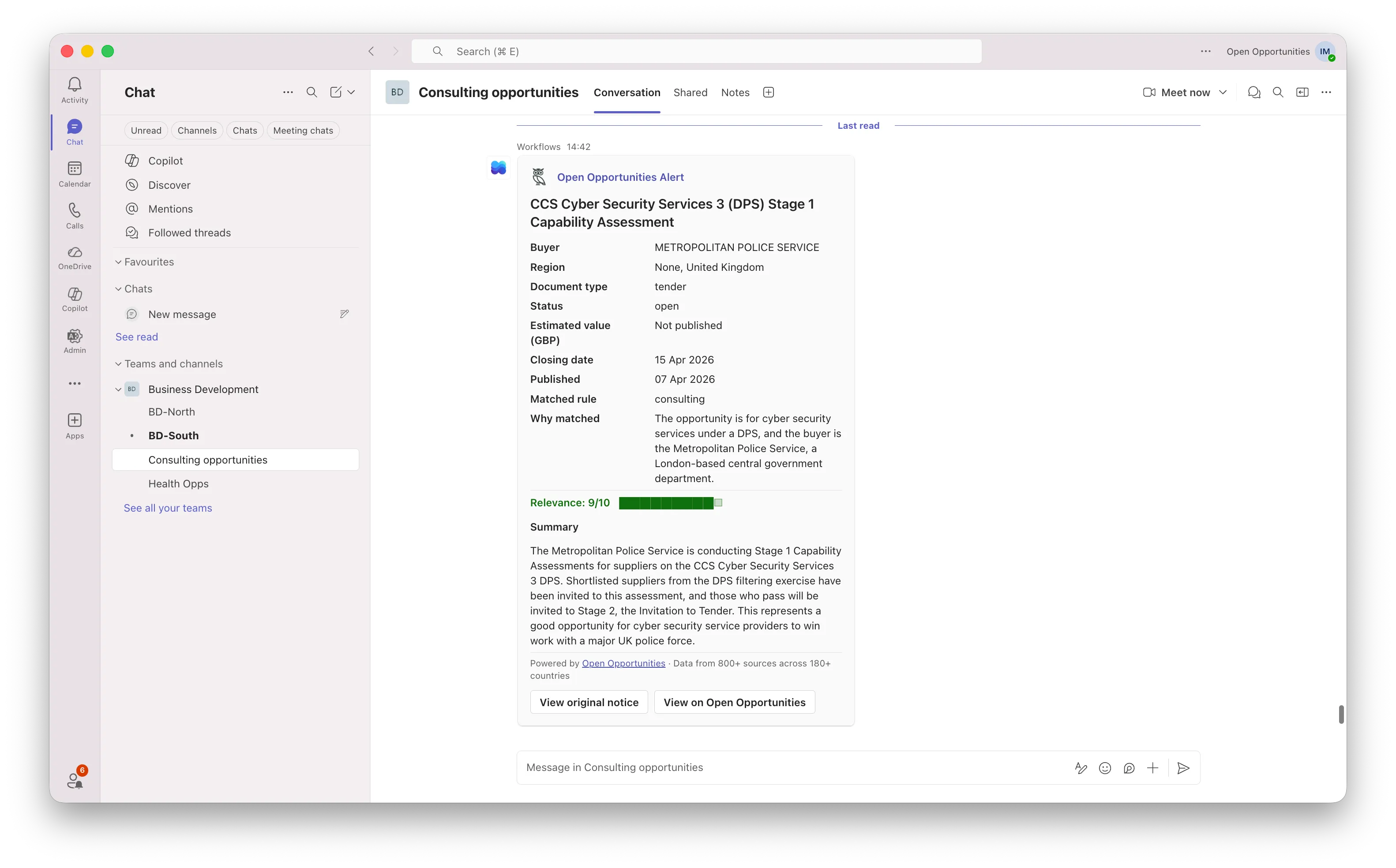
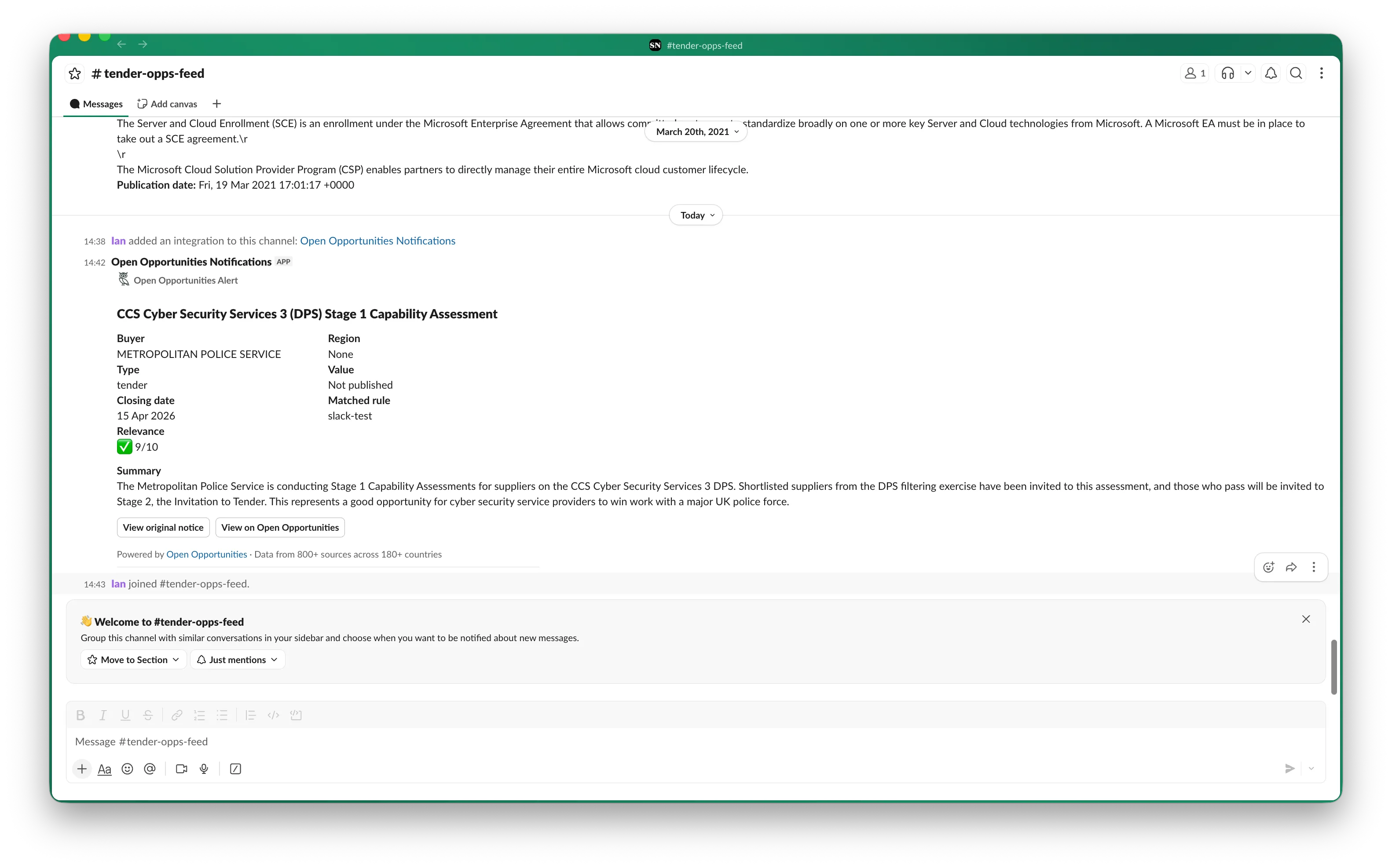
python run.pyAlerts will appear in your Teams or Slack channels within seconds. Each card includes:
- Open Opportunities branding — so your team knows where the data comes from
- Opportunity title and buyer details — name, region, value, dates
- Relevance score — colour-coded 1-10 rating (green for 8+, amber for 5-7, red for 1-4)
- AI-generated summary — 2-3 sentence plain-English description
- Two buttons — "View original notice" (goes to the source) and "View on Open Opportunities" (goes to your platform)
The router remembers which records it has already posted (for 14 days) so running it again won't create duplicates.
Step 8: Automate it
Run the router every morning automatically using cron:
# Create a logs directory
mkdir -p logs

# Open your crontab
crontab -e

# Add this line (runs at 7am every day)
0 7 * * * cd /path/to/alert-router && python run.py >> logs/run.log 2>&1
Replace /path/to/alert-router with the actual path where you cloned the repo.
That's it. Every morning at 7am, your team will have fresh procurement alerts waiting in their channels.
Using other LLMs
The alert router uses Google Gemini by default, but the classification logic is contained in a single file (router/classify.py) that you can swap out for any LLM provider.
Why structured output matters
The router uses Gemini's structured JSON output feature. Instead of asking the LLM to return freeform text and hoping it follows a format, we define a JSON schema and Gemini guarantees the response matches it. This means the parser never breaks.
Here's the schema we use:
{
  "matched_rules": ["bd-south", "consulting"],
  "relevance": 9,
  "summary": "The Metropolitan Police Service is conducting...",
  "reason": "Title explicitly mentions cyber security services DPS..."
}
Equivalent features in other LLMs
- OpenAI GPT-4o, use
response_format: { type: "json_schema", json_schema: {...} } - Anthropic Claude, use tool use with a defined input schema (Claude will return structured JSON via the tool call)
- Mistral, use
response_format: { type: "json_object" } - Ollama / local models, use JSON grammar enforcement or structured output mode
The key requirement is that your LLM returns valid JSON matching the schema above every time. Without structured output, you'll get occasional parsing failures when the LLM returns unexpected formatting.
How to swap the LLM
- Open
router/classify.py - Replace the
google.genaiimport with your LLM client library - In the
classify_record()function, replace the Gemini API call with your provider's equivalent - Make sure the response is parsed into the same dict format:
matched_rules,relevance,summary,reason
The prompt itself (which describes the routing rules and record details) works with any LLM, it's the API call and response parsing that differs.
Important: API usage limits
The procurement database updates twice a day. Making repeated requests (e.g. every few minutes) is pointless, the data won't have changed. Running the router once or twice a day is all you need.
Excessive API usage will trigger rate limits and your account may be suspended. Please be respectful of the service:
- Run once or twice a day, a morning and evening run catches everything
- Don't poll in a loop, there's no new data between updates
- Use the
lookback_dayssetting, fetch only what you need, not the entire archive - Use
max_records, cap the number of records per run while testing - Use search filters, always filter by keyword, category, or buyer. Don't fetch unfiltered data.
API quick reference
The alert router uses two API endpoints. Here's what they do if you want to build your own integration.
Authentication
curl -X POST https://api.spendnetwork.cloud/api/v3/login/access-token \
  -H "Content-Type: application/json" \
  -d '{"username": "you@company.com", "password": "your-password"}'
Returns: {"access_token": "eyJ..."}
Search records
curl -X POST https://api.spendnetwork.cloud/api/v3/notices_summary/read_summary_records \
  -H "Authorization: Bearer YOUR_TOKEN" \
  -H "Content-Type: application/json" \
  -d '{
    "release_date__gte": "2026-04-06T00:00:00Z",
    "buyer_address_country_code__is": "GB",
    "release_tags__is": "tender",
    "tag_status__is": "open",
    "search_term__is": "cyber security",
    "limit": 100,
    "offset": 0,
    "sort_by": "release_date",
    "date_direction": "desc"
  }'
Available filters
buyer_address_country_code__is: ISO alpha-2 country code (e.g. "GB", "IE", "DE")release_tags__is: document type: tender, planning, award, tenderUpdate, etc.tag_status__is: "open" or "closed"search_term__is: keyword search (supports boolean OR:"term1" OR "term2")search_term__exclude: exclude records containing this termvalue__gte: minimum contract value in GBPrelease_date__gte: records published after this date (ISO format)limit: records per page (max 100)offset: pagination offset (max 9900)
For full API documentation, see the API page.